Asset Log: how to use it
A plain guide for the person who looks after the equipment. Each part says what to tap, with a screenshot of the real app.
1. What Asset Log is
Asset Log is a maintenance log for the things you depend on: mowers and diggers, vans and trailers, power tools, a boiler, a generator. Each one gets a QR sticker. Scan the sticker and the asset opens with its whole history: the work done on it, what that cost, its meter reading, and what is due next.
Everything is kept on your phone. There is no account to make, and no limit on how many assets you keep.
Good to know. Logging, reminders, QR labels, Desktop access and backups are free, with an advert now and then. The yearly subscription removes the adverts and adds reports and exports. See section 13.
To look round before entering your own things, load the sample business: More, then Getting started, then Try it with sample data. Delete it from the same place when you are ready to start.
2. Finding your way around
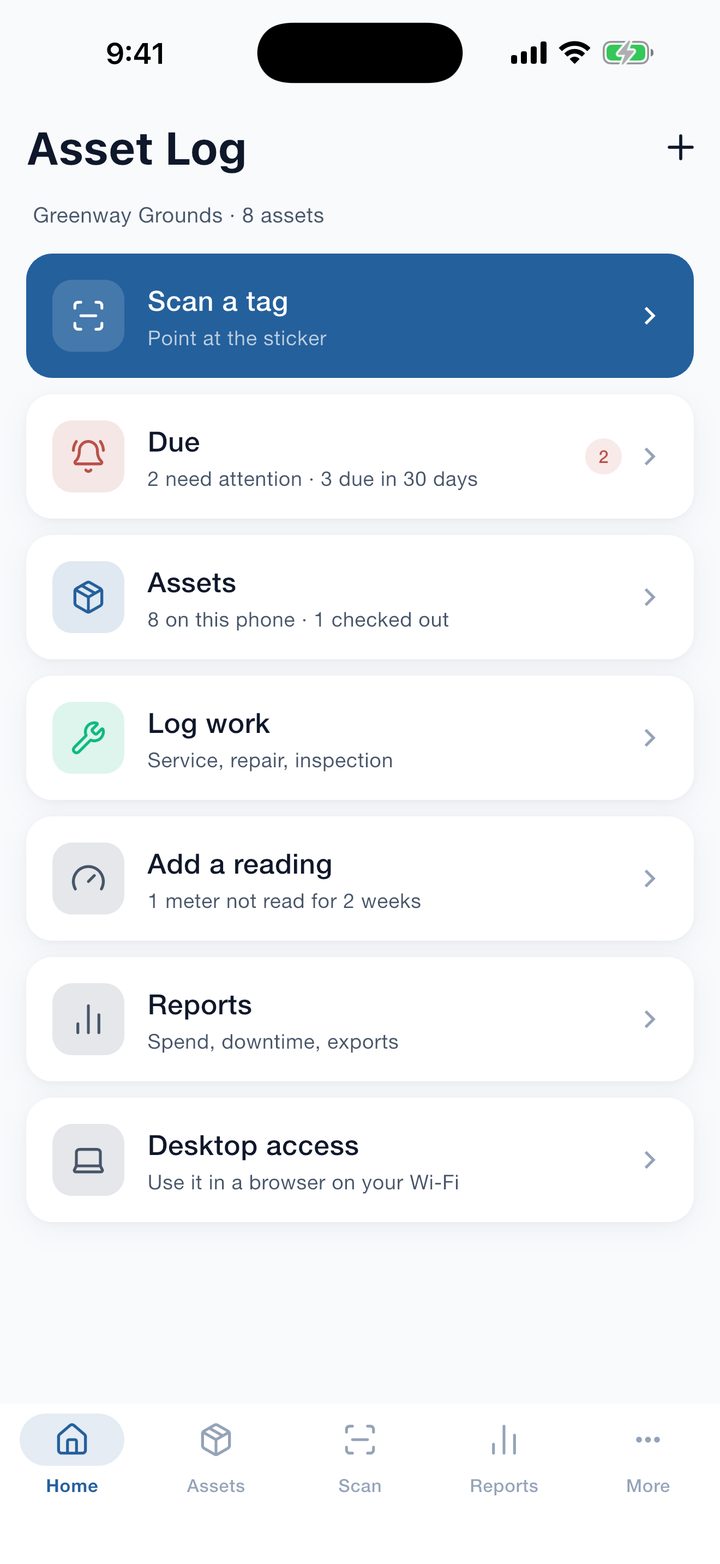
Along the bottom are five tabs:
- Home: the jobs you do most, each with a one-line summary.
- Assets: everything you own, with what needs attention.
- Scan: the camera, for reading a sticker.
- Reports: what was spent, and files to share.
- More: settings, lists you set up once, backup and help.
On Home, Scan a tag opens the camera, Due shows every reminder, Log work and Add a reading ask which asset and then open the form, and Desktop access opens your log on a computer.
3. Setting up
The first time the app opens it asks for your business name, your currency, and whether vehicles count in kilometres or miles. The name is printed on labels and reports. All three can be changed later under More, then Set-up.
Under More, then Masters, are the lists you set up once and then pick from:
- Categories: what a thing is, such as Vehicles, Plant and machinery or Power tools.
- Locations: where things live, such as Yard, Van 2 or Office.
- People: who looks after things, does the work, or has a tool checked out.
- Suppliers: where things and parts were bought.
Good to know. You do not have to fill these in first. Any of them can be added while you are adding an asset or logging work.
4. Adding your assets
- Tap the + at the top of Home, or Add an asset on the Assets tab.
- Give it a name. That is the only thing you must enter.
- Add what helps: category, location, make and model, serial number, registration, the date and price you bought it, the warranty end date, and a photo.
- If it has a meter, choose hours, kilometres or miles, and enter the reading now.
- Save. The app gives the asset a tag code, which is what its QR sticker carries.
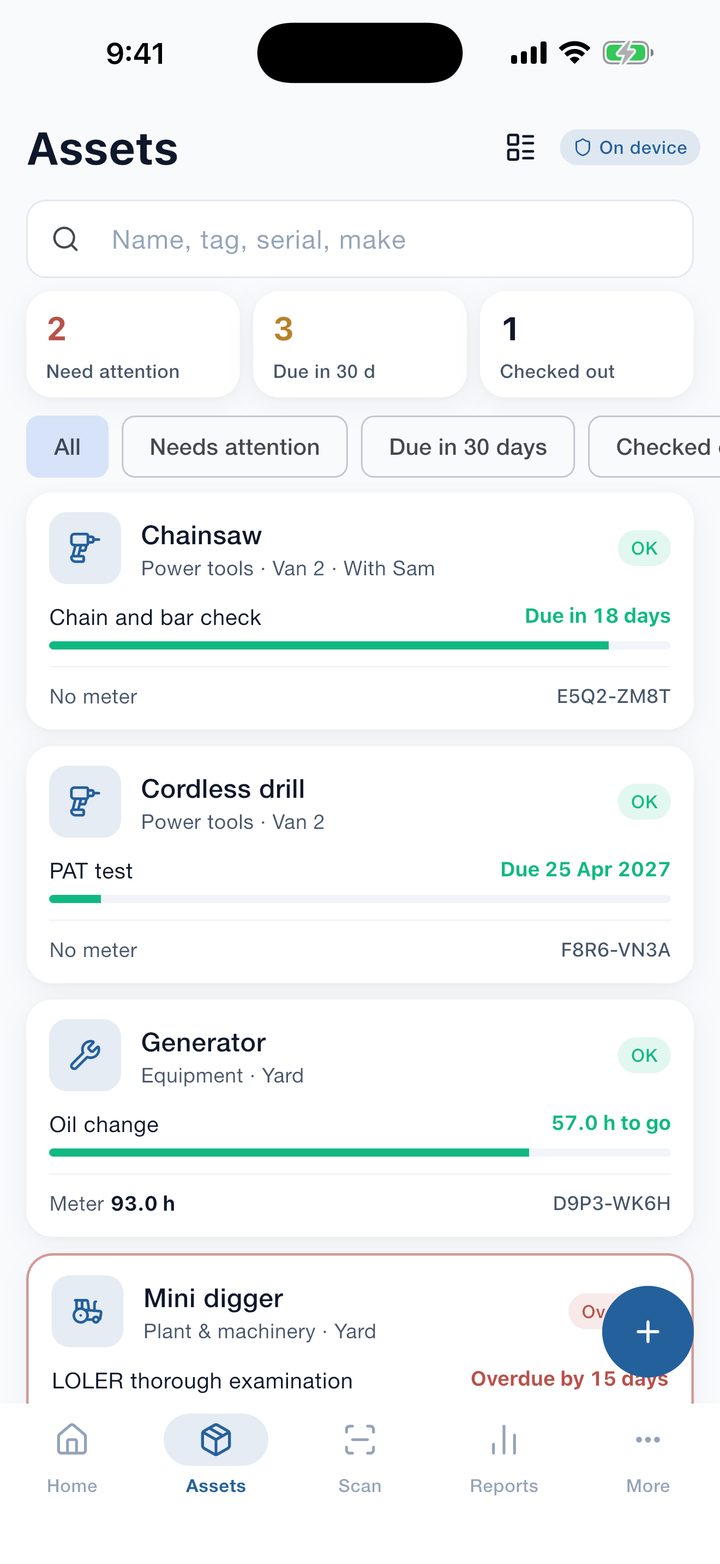
The Assets tab shows every asset as a card with its next reminder and a bar that fills as the due date comes closer. The button at the top right switches between cards and a compact list.
Search by name, tag, serial number or make. The chips filter by what needs attention, what is due in 30 days, what is checked out, and by category.
Good to know. An asset's status can be In service, In repair, Out of service, Retired, Sold or Lost. Retired, sold and lost assets keep their history but drop out of the counts and reminders.
5. QR labels: printing and sticking
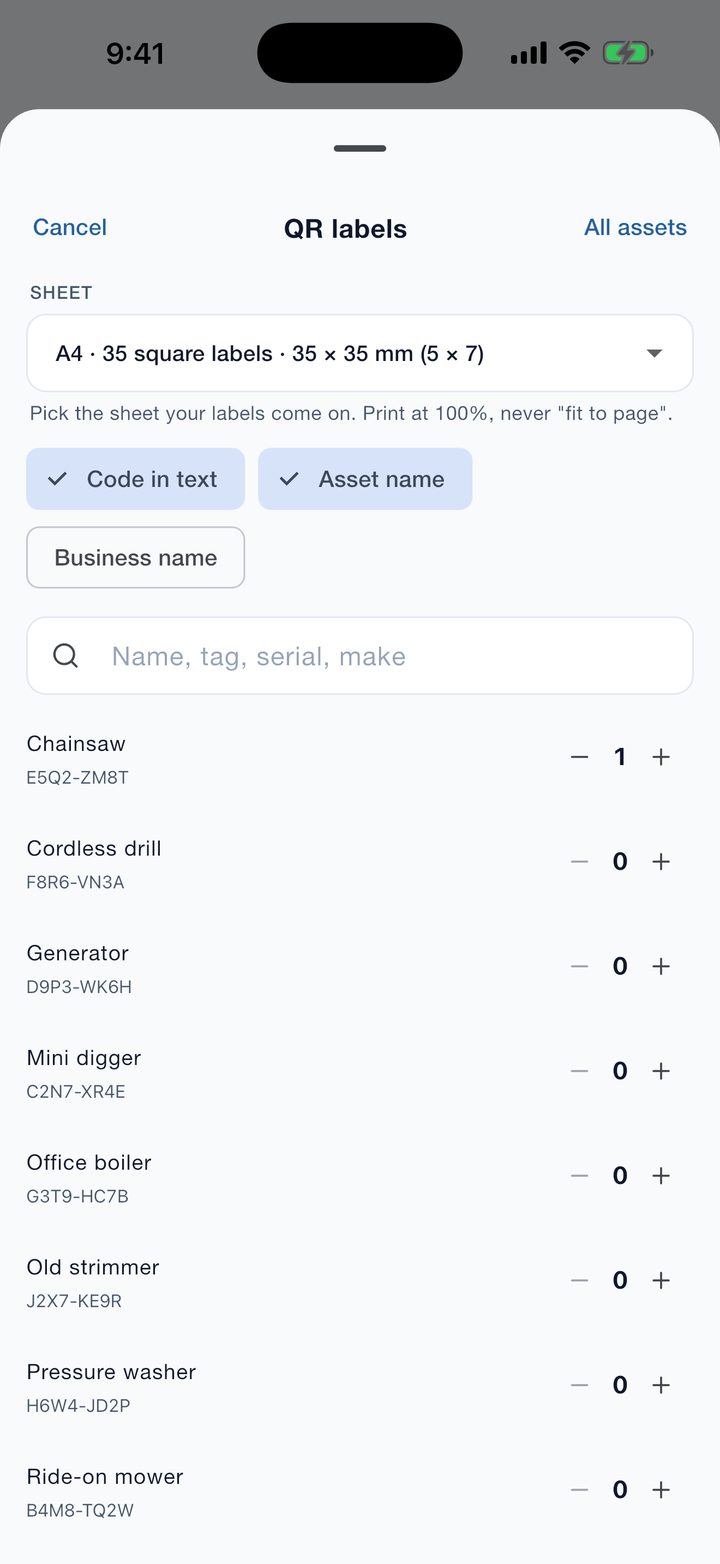
- Open More, then QR labels. To print one label, open the asset and tap Print label.
- Choose the sheet your labels come on. There are sizes for common A4 and US Letter label packs, and for Brother and Dymo label rolls.
- Choose how many of each label, and whether to print the asset name, the code as text and your business name.
- Tap Print, or Share PDF to send the sheet to a computer.
Print at 100%. In the print dialog, never choose "fit to page" or "scale to fit", or the labels will not line up with the sheet. Print the test sheet on plain paper first and hold it against a label sheet to the light.
Stick the label somewhere flat, clean and out of the way of heat and wear. A sticker that also carries the code as text can still be typed in if the QR part is scratched.
Good to know. Already have barcodes or tags on your equipment? Scan one on the Scan tab. If the app does not know it, it offers to add an asset with that tag, so you can keep the labels you have.
6. Scanning a tag
Tap Scan a tag on Home, or the Scan tab, and point the camera at the sticker. The asset opens at once. In poor light, use the torch button.
If the sticker is damaged or there is no camera to hand, tap Type the code and enter the code printed on the label.
Good to know. If someone scans a sticker with their phone's ordinary camera, without the app, it opens a page on our website that says the sticker is an Asset Log tag. It shows nothing about the asset, because your records are only on your phone.
7. Logging work
- Scan the asset, or tap Log work on Home and pick it. On an asset's own page the Log work button is at the bottom.
- Choose the kind: service, repair, inspection, calibration, cleaning, tyres, oil change, breakdown, modification or other.
- Say what was done, and the date.
- Add what you want to keep: the meter reading, who did it or which outside garage, labour time and cost, parts with their quantity and price, downtime, an invoice number, and photos.
- If the work ticks off a reminder, choose it under Ticks off. The reminder starts again from this date and reading.
- Save.
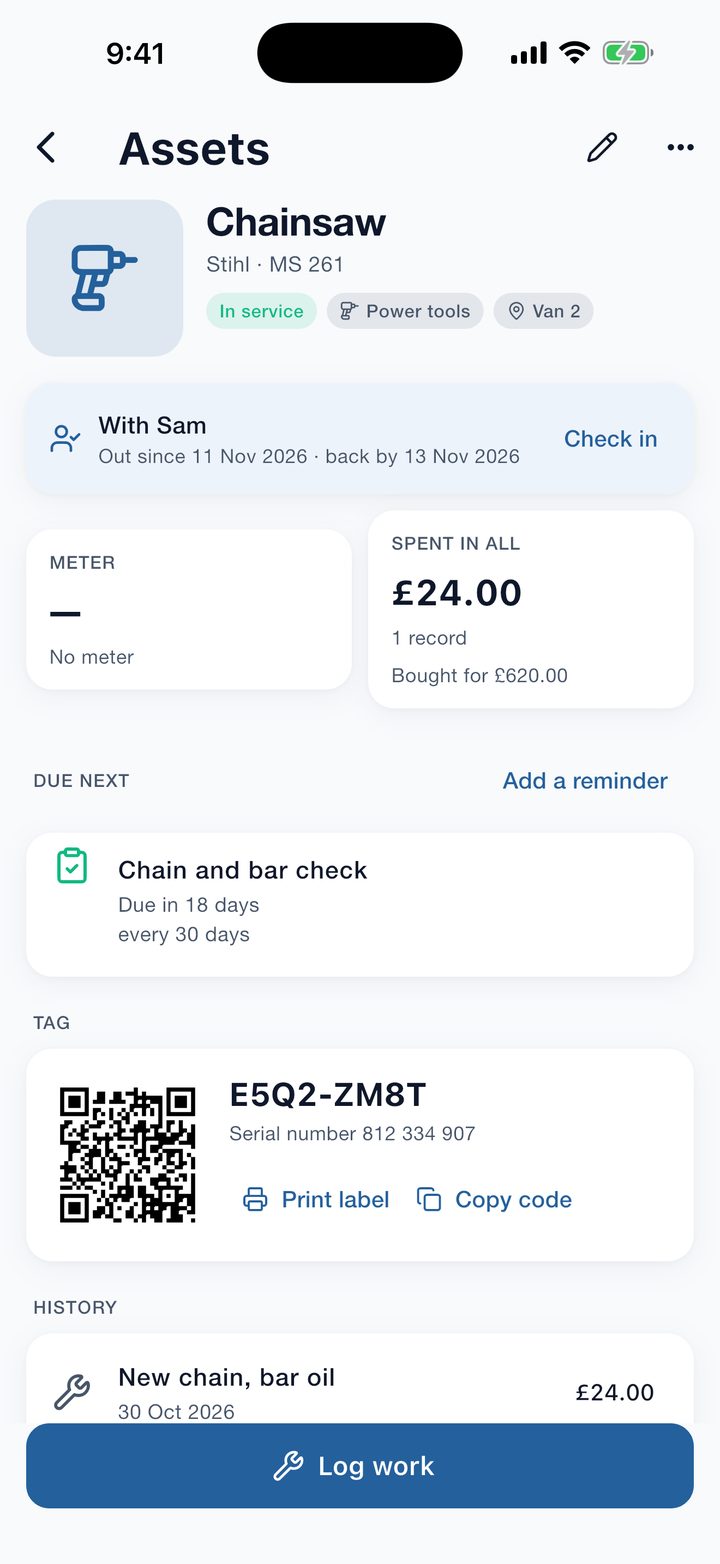
Everything logged appears in the asset's History, newest first, and adds to its Spent in all figure. Tap a record to see it in full, or to edit or delete it.
An inspection can be marked Pass or Fail. Photos and documents, such as a certificate, can be attached to the asset as well as to a record.
8. Meter readings
An asset with a meter shows its latest reading on its page. Add a reading on its own from Home (Add a reading) or from the asset page, or enter it while logging work.
If a reading is lower than the last one, the app asks before saving. Save anyway if the meter was replaced.
Good to know. Home tells you when a meter has not been read for two weeks. Regular readings are what let the app estimate the date a service by hours or distance will fall due.
9. Reminders and the Due list
Open an asset and tap Add a reminder. A reminder can repeat by time (every 12 months), by meter (every 250 hours), or by whichever comes first. It can also be a single date not to miss, such as an MOT or an insurance renewal. Choose how far ahead you want to be warned.
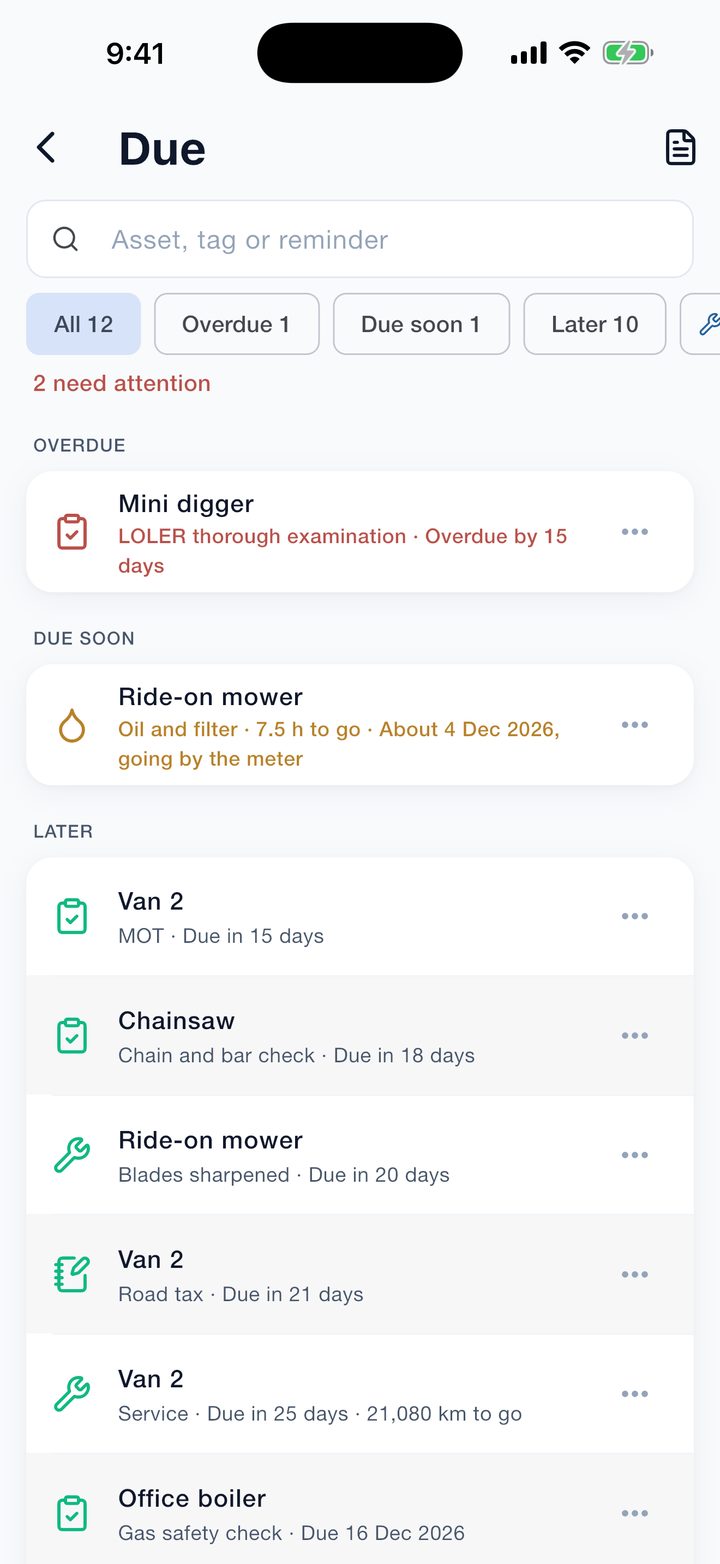
The Due list, from Home, shows every reminder across everything you own:
- Overdue, in red, first.
- Due soon, inside the warning time you set.
- Later.
- Needs a reading: meter reminders that cannot be worked out until a reading is entered.
Search by asset, tag or reminder, and filter by state or by kind of work. Tap a reminder to log the work, to mark it done without the details, or to open the asset.
For a notification once a day when something is due, open More, then Daily reminder, and choose the time.
Good to know. A notification can be delayed or missed by the phone. The Due list is the record, so look at it.
10. Who has what: check out and check in
To lend a tool to someone, open the asset and tap Check out. Choose the person, a date it is due back, and add a note on its condition. The asset then shows who has it and since when, and the Assets tab counts what is checked out.
When it comes back, open it and tap Check in.
11. Desktop access: your log in a web browser
Desktop access shows your asset log on a computer or tablet on the same Wi-Fi. The page comes straight from your phone; nothing is stored on the computer or on our servers.
- On the phone, open Desktop access from Home or from More, and tap Start.
- On the computer, type the address shown on the phone into a web browser. A tablet can scan the QR code instead.
- Type the pairing code shown on the phone, once. The browser stays paired until you tap Disconnect all on the phone.
- Start with the app: Desktop access is ready as soon as the app opens, and a paired browser reconnects by itself.
- Dim the screen while connected: after 30 seconds without a touch, the phone's screen goes black to save battery. It wakes on a touch.
The phone has to stay on the same Wi-Fi with the app open. On the free plan the browser pauses every 20 minutes until an advert has played on the phone.
Good to know. The page is not encrypted on your network, so use a Wi-Fi you trust and keep the pairing code to yourself.
12. Keeping your data safe
Your records live on your phone. A lost or broken phone loses them unless you have a backup, so set one up on the first day. Open More, then Backup.
- Save a copy: writes one file with everything in it. Keep it somewhere other than the phone: a drive, or an email to yourself.
- Restore: puts a saved copy back, on this phone or a new one.
- iCloud backup (iPhone and iPad): keeps the newest backup in your own iCloud Drive by itself.
- Android backup: Android includes the app in the phone's own backup to your Google account.
To stop others opening the app, turn on the app lock under More, then Security. It uses Face ID, Touch ID, your fingerprint or your phone's screen lock.
Good to know. Asset Log keeps its records on one phone or tablet. It does not sync between devices. To move to a new phone, save a copy on the old one and restore it on the new one.
13. The free version and the subscription
Free, for good: unlimited assets, work records, readings, reminders and photos, QR label sheets, check out and check in, Desktop access, and backup and restore. The free version shows adverts: a full-screen advert at most once every 20 minutes, offered only when you move between tabs, never when the app opens.
The yearly subscription removes the adverts and adds reports and exports:
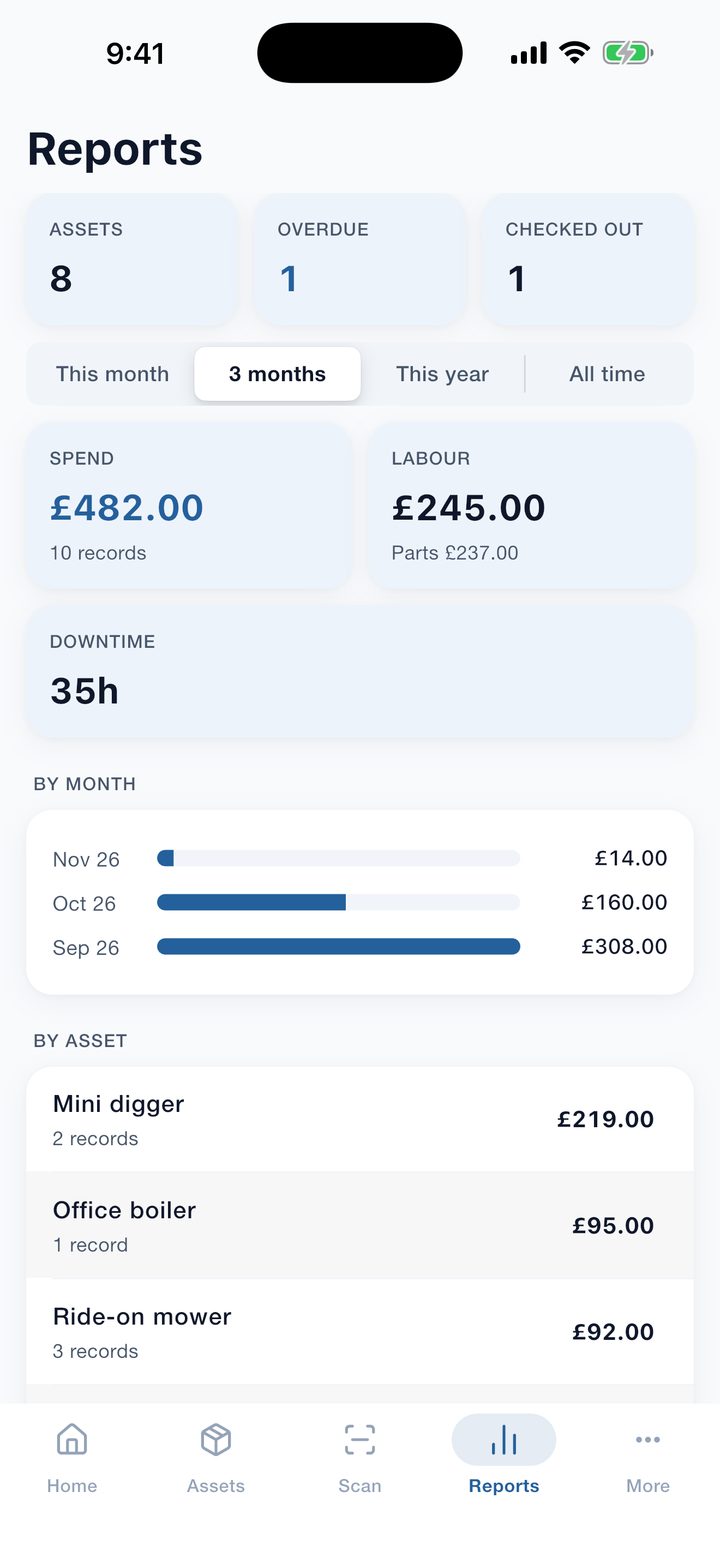
- Reports: what was spent by month, by asset and by kind of work, with downtime, for the period you choose.
- Exports: the asset register, the work log, the spend report, the reminders list and any asset's full history, as PDF or CSV files to print or send.
On the free plan the Reports tab is shown blurred, with a button to see the subscription.
Subscribe under More, then Go ad-free. Payment is handled by the App Store or Google Play, and you cancel there, not in the app. If you change phone, tap Restore purchase on the same screen.
14. Questions and problems
- The camera will not scan. Clean the sticker, try the torch, hold the phone 15 to 20 cm away, or type the code. Check the app is allowed to use the camera in the phone's settings.
- The labels do not line up. Print at 100% with no scaling, and check the sheet chosen in the app matches the pack.
- A reminder says Needs a reading. It counts by meter and the asset has no reading yet. Add one.
- The browser cannot find the phone. Check both are on the same Wi-Fi, that the app is open on the phone, and try the address by number shown on the Desktop access screen.
- I got a new phone. Save a copy on the old phone, install Asset Log on the new one, and restore the copy. Then tap Restore purchase if you subscribe.
- I want to delete everything. More, then Reset, then Delete everything. This cannot be undone, so save a copy first if you might want it.
To ask us something, open More, then Help, and send a message. We reply inside the app. You can also write to contact@brightscalelabs.com.
Good to know. Asset Log is a record-keeping aid. It does not certify that a machine, tool or vehicle is safe or legal to use, and its reminders do not replace the inspections and tests the law requires of you.
See also the privacy policy, the terms of service and the terms of use.